
 To the App
Search for Articles
How to Export Analytics Data in CropLink?
Get full access to your link performance data by exporting it for further analysis. Whether you need to generate reports, share insights with your team, or conduct deeper analytics, our platform allows you to download all collected metrics in a convenient format.
How to Export Data
-
Open the Analytics Dashboard – Navigate to the desired chart.
-
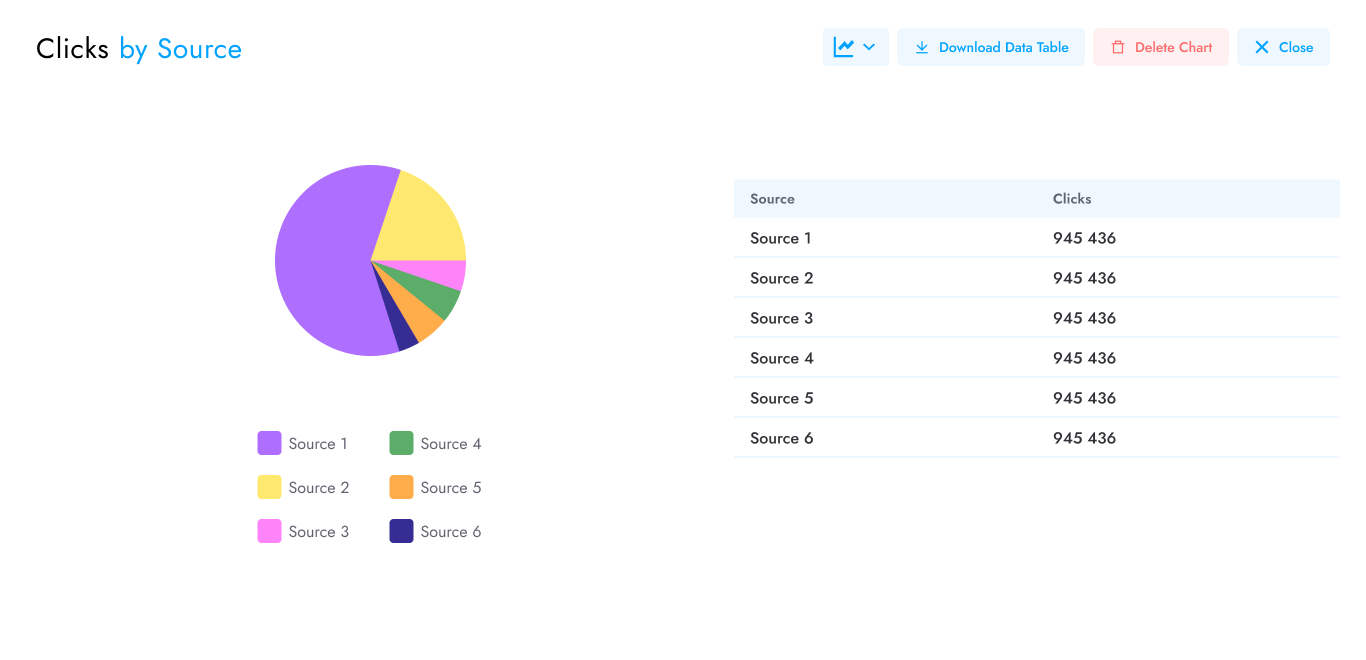
Expand the Chart – Click the double arrow icon
 on the chart to reveal the detailed view.
 -
Click “Download Data Table” to save the information as an XLS (Excel) file.
Why Export Data?
- Advanced Reporting – Process data in Excel, Google Sheets, or BI tools.
- Long-Term Tracking – Keep historical records beyond the dashboard’s retention period.
- Team Collaboration – Share raw data with marketers, analysts, or stakeholders.
- Custom Analysis – Apply filters, pivot tables, or combine with other datasets.
Have another question?
Contact us