
 To the App
Search for Articles
How to create links with campaigns?
You can create short links in your account either within a specific campaign or without one — such links will automatically be added to the Default Campaign.
What Is a Campaign?
A campaign is a way to organize your links for better tracking and management. Think of it like a folder that groups related links together. For example:
- You might create a campaign for a marketing initiative (like “Summer_Sale_2024”);
- Or group links by content type (like “Blog_Posts” or “Social_Media”).
Campaigns help you track performance of related links together and stay organized as your link collection grows.
Each campaign in your account can be set to one of three statuses, depending on your needs:
- Active (Default Status)
- Links in the campaign are fully functional
- Tracking and analytics are being recorded
- New links can be added
- Paused
- Links are not accessible
- No new analytics are recorded
- Can be restored to “Active” if needed
- Completed (Archived)
- Links are not accessible
- No new links can be added to the campaign
- No new analytics are recorded
- Can be restored to “Active” if needed
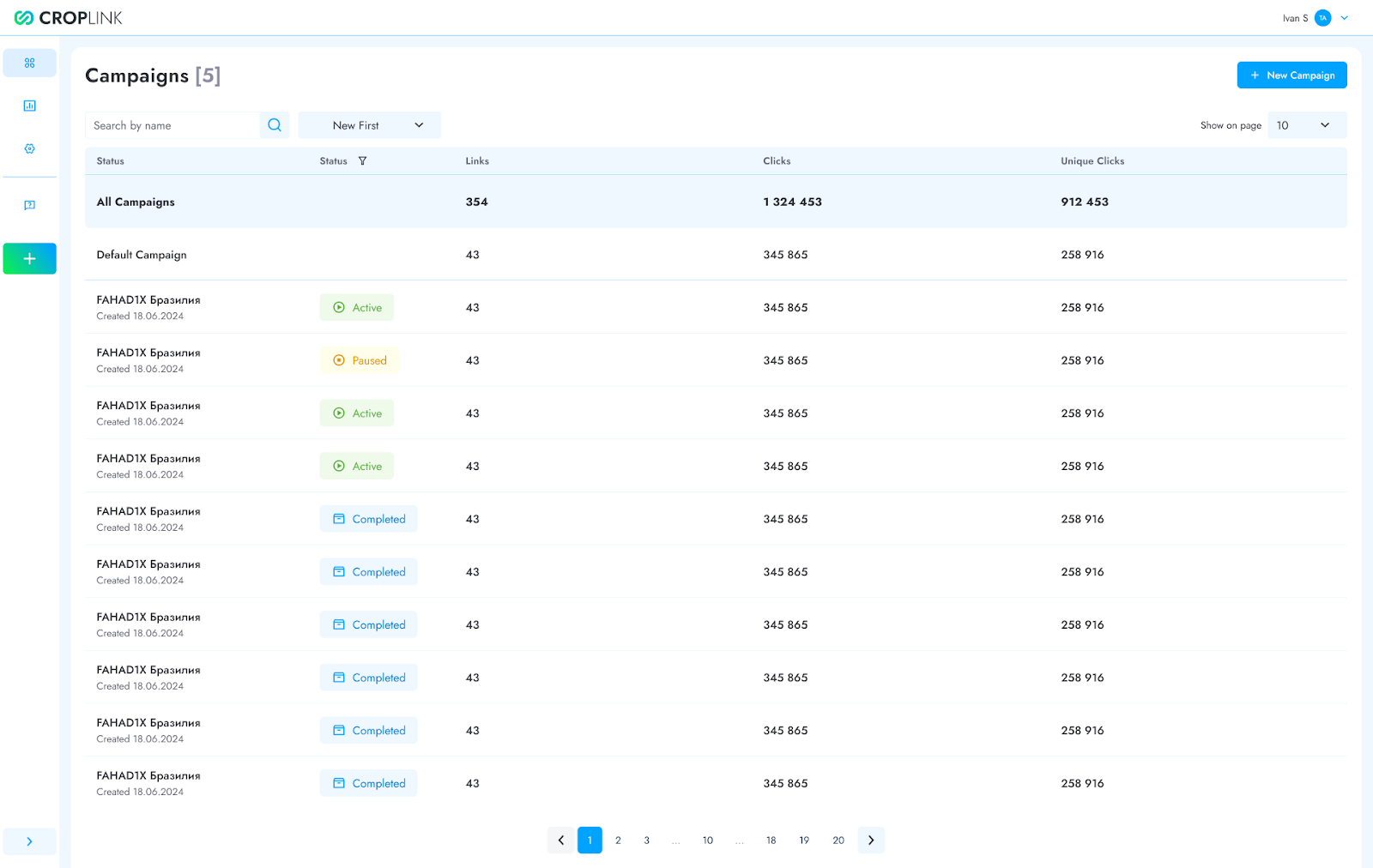
Tip: Use filters to view campaigns by status.
Creating a Short Link
- Go to your dashboard and click the “New Link” button.
- Enter the original URL you want to shorten.
- Assign the link to a campaign or leave it unassigned to place it in the Default Campaign.
- Click “Create Short Link” and see the result — your shortened URL is now ready to use!
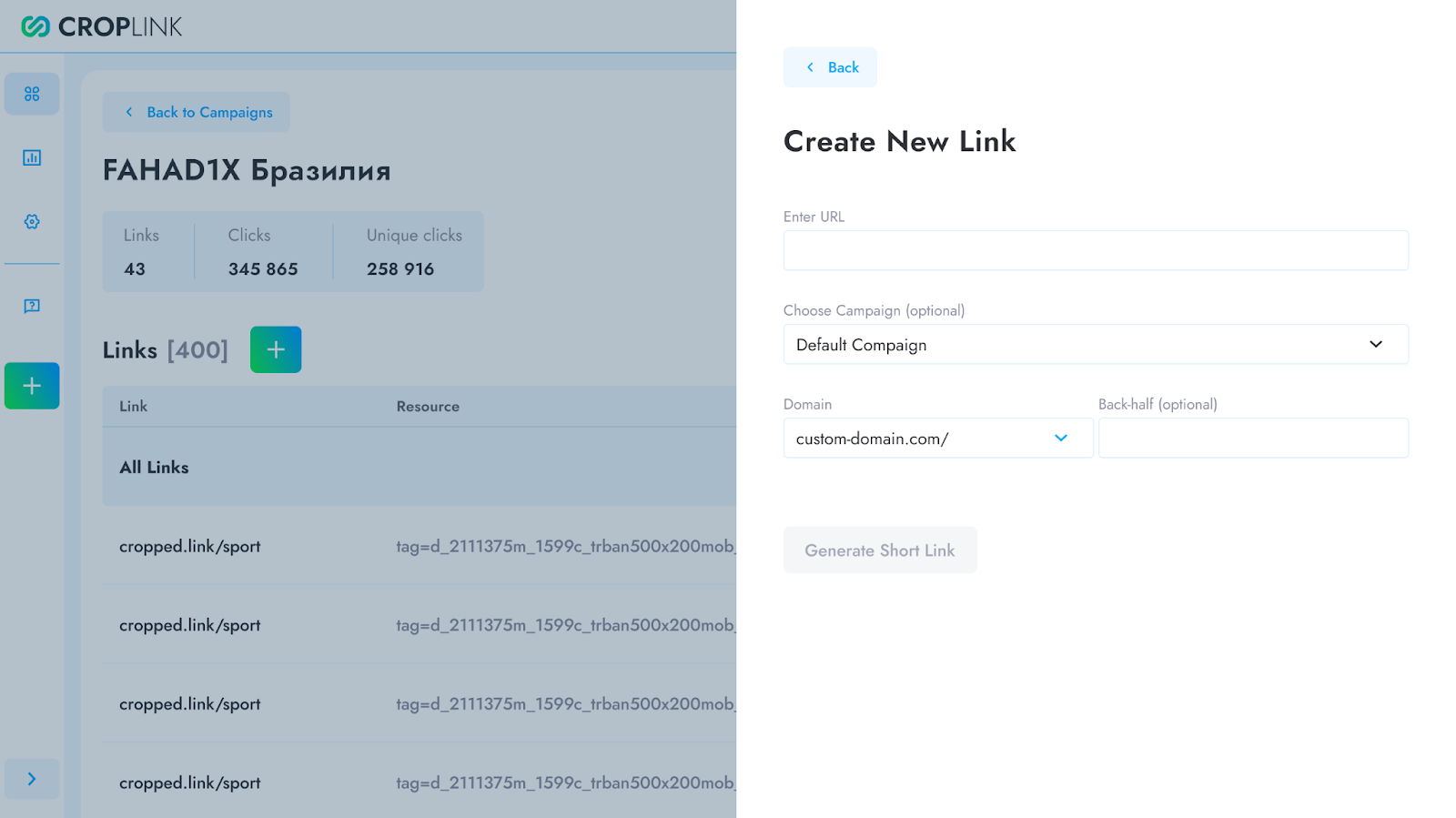
Where to find your short links:
- Links assigned to a campaign appear in that campaign’s dashboard.
- Unassigned links are stored in the Default Campaign by date.
Have another question?
Contact us